.png?width=250&height=38&name=GGMS%20Knowledge%20Base%20Logo%20(1).png)
How to Access My Settings
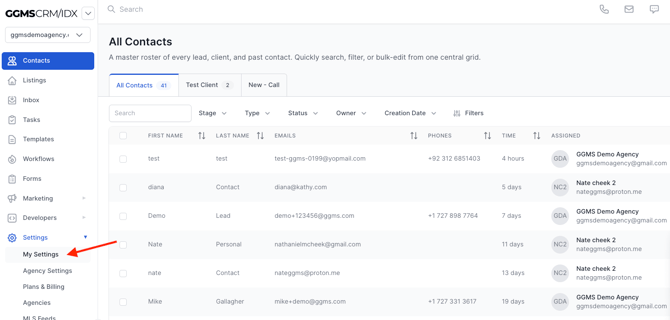
- Click Settings in the left-hand menu
- Select My Settings
Profile Information
Profile Photo
- Upload a profile image (optional)
- Follow the minimum size requirements shown on screen
First & Last Name
- Required field
- Used in merge fields for emails and text messages (e.g., automated messages)
Position / Title
- May be pre-set by your admin or team lead
- Can be updated if needed (e.g., Agent, Broker, ISA)
Authentication
Login Email
- This is your login credential for the CRM
- Cannot be changed in this section
Password
- Can be updated at any time
Connected Email
- Connect your Google (Gmail) and/or Microsoft (Outlook) accounts
- Allows you to:
- Send emails from the CRM
- Receive emails in the CRM inbox
- You can connect multiple email accounts
- Select a Primary Email to define your default sending address
Note:
SendGrid settings and sender identities are managed separately, typically by your admin or onboarding team.
Email Signature
- Add a signature for all outgoing emails
- Supports:
- Text
- Images
- This will automatically be included in your email communications
Calling Settings
Connected Phone Number
- Used for:
- Call forwarding
- Sending/receiving text messages
- System alerts
- You can use your personal cell phone
- Important: Verify your phone number to ensure proper functionality
Virtual Phone Number
- Typically assigned by your admin/team lead
- Can be viewed here once set up
Voicemail Greeting
- Record a custom voicemail greeting for the CRM
- This is separate from your personal phone voicemail
- Used when calls are routed through the system
Final Step
After completing your setup, click Save to apply all changes.