
Step-by-Step Instructions
1. Log in to the CRM
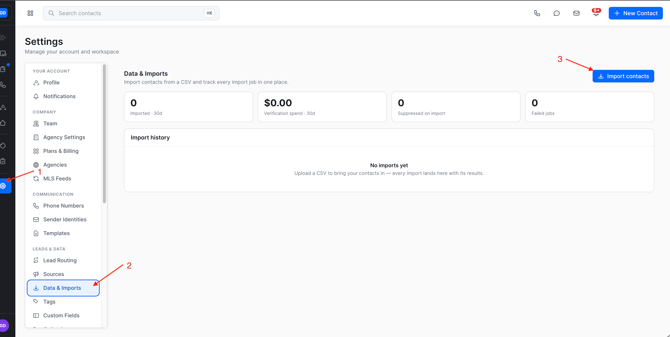
2. Navigate to Settings
- Click Settings
- Select Data and Imports
- Select Import Contacts
3. Import Contacts
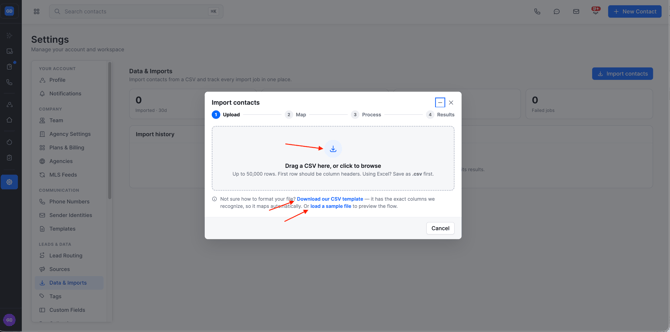
- Drag and Drop CSV or Click to Upload
- To properly map your leads please review the following:
- Download CSV Import OR
- This is the Universal Mapping CSV based on GGMS's contacts
- Download CSV Import OR
-
- Load a sample file
- This will show you how GGMS maps contacts
- Load a sample file
4. Map Contacts
- Map your contact fields to match the GGMS fields inside the CRM
- The Left-hand side will be the field headers from your import
- The Right-hand side will be the field headers inside of GGMS
- If there is not a property that matches, please use "Custom Field"
- If there is a property that you do not want to import use "Skip Column"
- You must have at least 1 contact with an email associated to import your leads. If a contact does not have an email or phone number, it will NOT be imported.
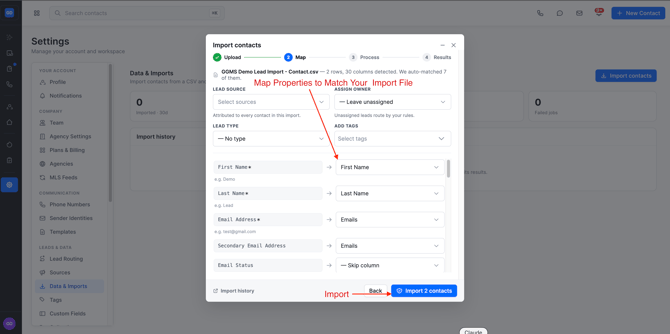
- Click "Import Contacts"
- This will show you how many contacts are being imported
Need Help?
If you run into any issues, reach out to:
support@ggms.com