.png?width=250&height=38&name=GGMS%20Knowledge%20Base%20Logo%20(1).png)
There are two ways to create a task
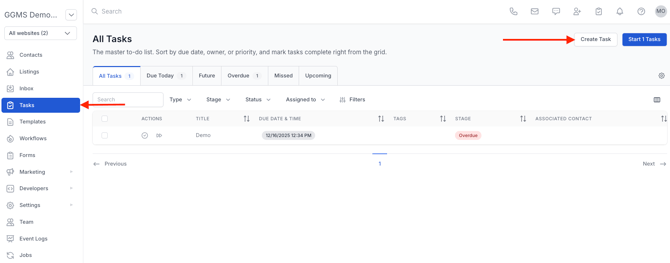
1. Create a New Task from the main menu
-
In the left-side panel, click Tasks
-
Click Create Task in the top-right corner
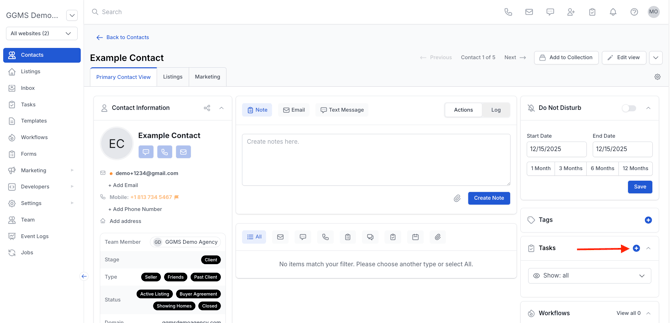
2. Create a New Task from Contact profile
- On the right-side panel, click the blue "+" symbol under Tasks
Configure Task Details
-
Enter a task name (for example: Urgent Task)
-
Choose a task type
-
Assign the task to a user (yourself or a team member)
-
Associate the task with a contact if applicable
-
Set a due date
-
Add a reminder
-
Configure the task to be marked missed if not completed within a set number of days
-
Add a tag if you want to track or group similar tasks (for example: Urgent)
-
Include an optional description for additional context
Organize with Collections
-
Create task collections to group similar tasks, such as urgent or priority items assigned to your team
-
Use collections to streamline task management and assignment
Save the Task
-
Click Create Task to finish
-
The task will now appear in your task list and any relevant collections
For additional help with tasks or collections, contact support@ggms.com.