.png?width=250&height=38&name=GGMS%20Knowledge%20Base%20Logo%20(1).png)
Create a New Tag
-
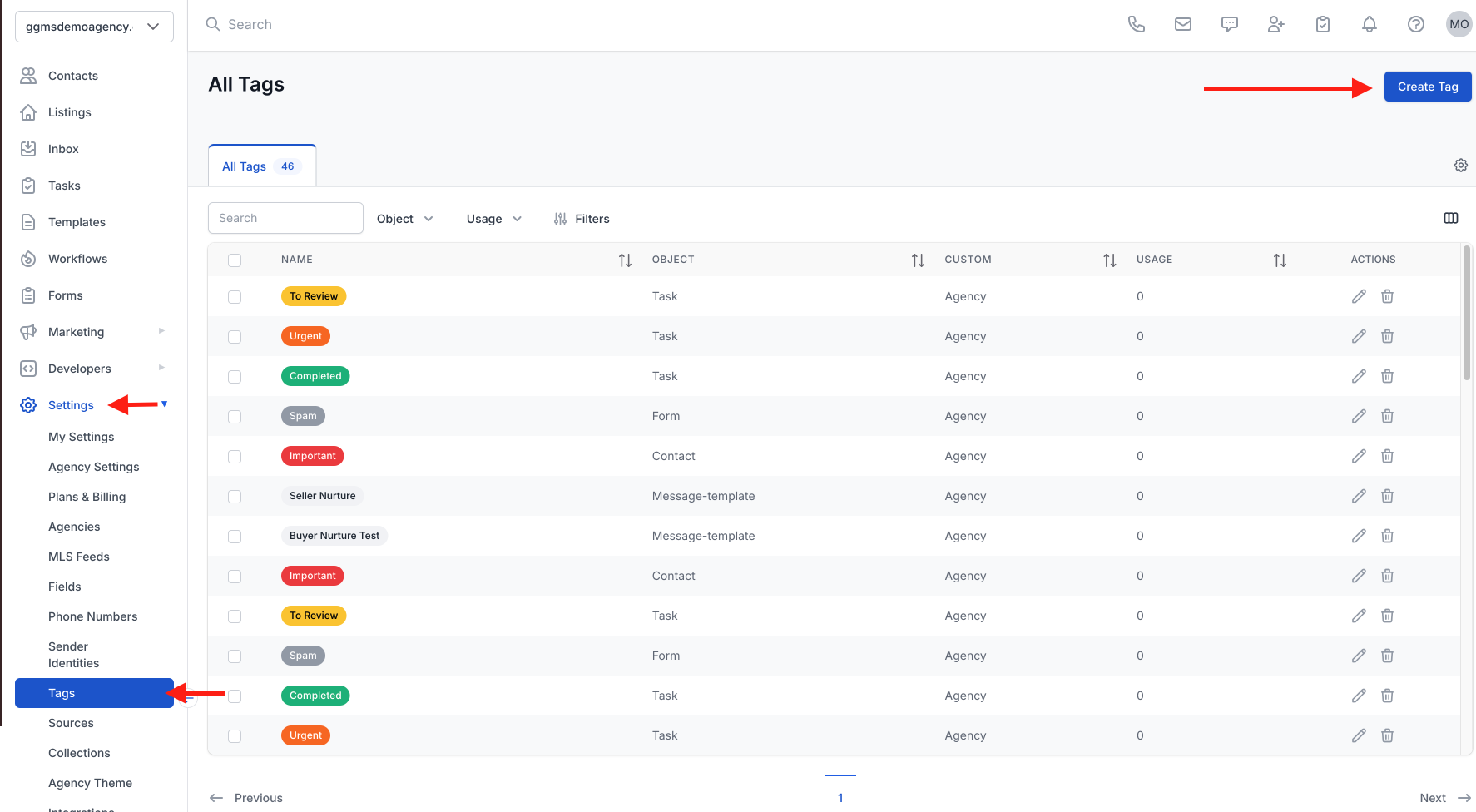
In the left-side panel, click Settings
-
Scroll down and select Tags
Click New Tag in the top-right corner
-
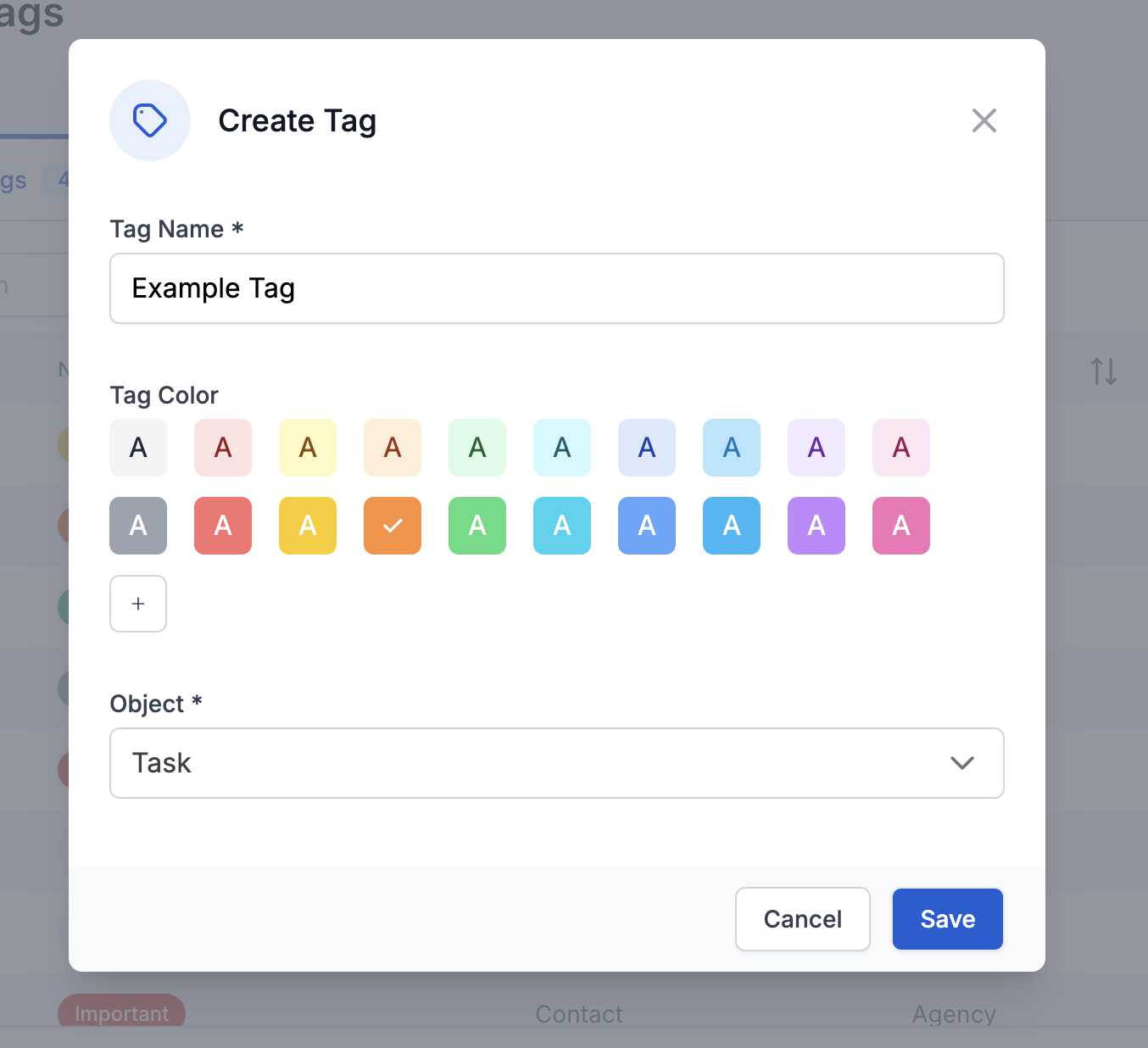
Enter a tag name
-
Choose a color for easy visual identification
-
Select the object(s) you want the tag tied to, such as:
-
Contacts
-
Emails
-
Forms
-
Listings
-
Sources
-
-
Click Save
Confirm the Tag
-
The new tag will appear in the All Tags list
-
It’s now available for filtering, workflows, and organization across the CRM