.png?width=250&height=38&name=GGMS%20Knowledge%20Base%20Logo%20(1).png)
Step-by-Step: Connect Your Email
-
Go to Settings
-
From inside the platform, click Settings.
-
-
Open My Settings
-
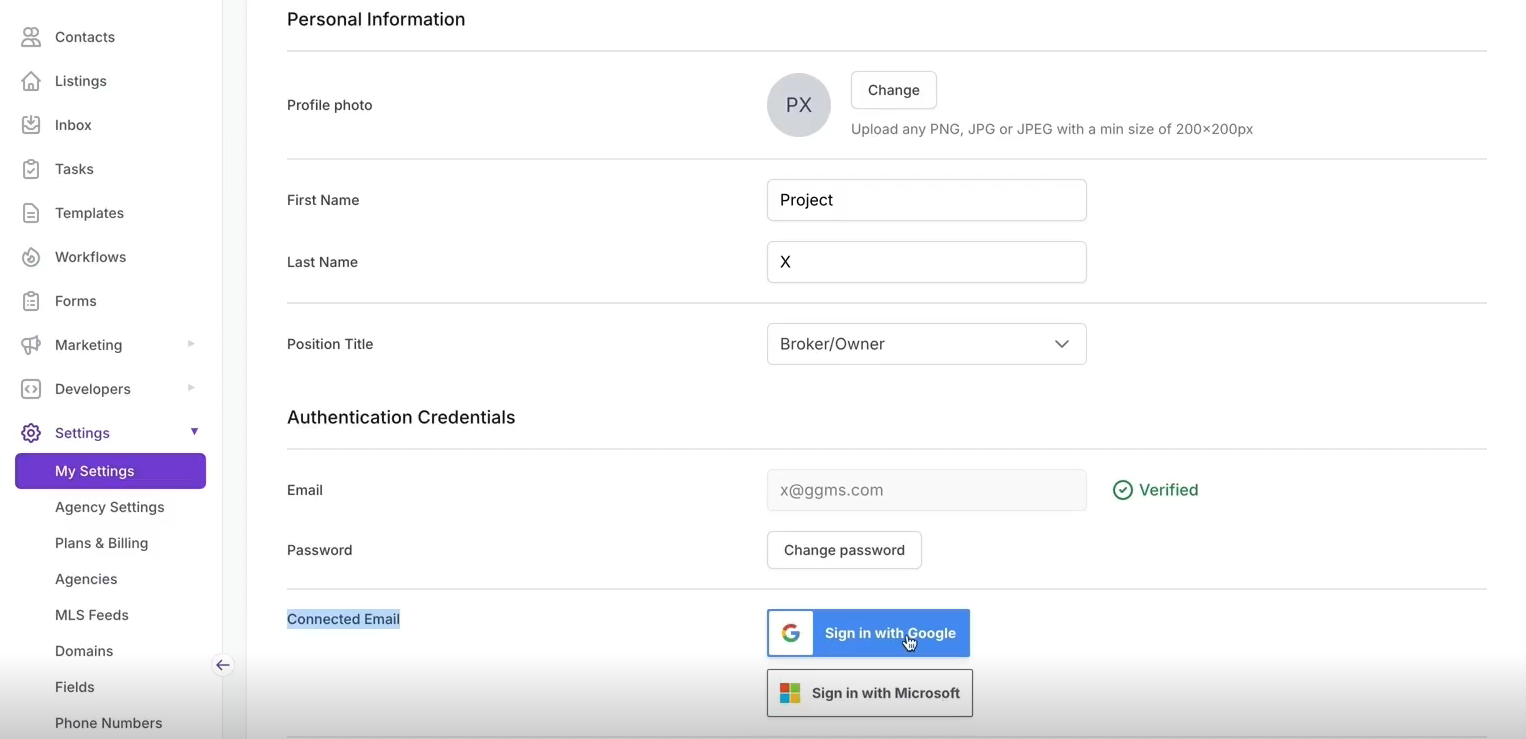
Under Settings, select My Settings.
-
These settings apply only to the user currently logged in.
-
-
Find Connected Email
-
Scroll to the Connected Email section.
-
You’ll see options to:
-
Sign in with Google
-
Sign in with Microsoft
-
-
-
Authenticate Your Email
-
Click Sign in with Google or Sign in with Microsoft.
-
Choose the email account you want to connect.
-
Click Continue, then select Allow to grant access.
Note:
If you see a warning screen, click Advanced and proceed to allow the connection. -
-
Confirm Connection
-
Once connected, your email will appear under Connected Email.
-
It will be enabled to send and receive emails.
-
Set a Primary Email (Optional)
-
You can mark an inbox as Primary.
-
The primary email will automatically be used as the “From” address for any new emails sent from the system.
Connect Multiple Inboxes
-
You can connect multiple Gmail and/or Outlook inboxes to a single user profile.
-
All connected inboxes roll up into one inbox experience.
Test Email Deliverability
-
Click the Email icon in the top toolbar.
-
Confirm the From address (defaults to your primary email).
-
Enter:
-
To address
-
Subject
-
Email body
-
-
Click Send Email.
If the email sends successfully, your inbox is connected properly.
Troubleshooting
If you experience issues sending or receiving emails:
-
Contact support at support@ggms.com
-
Our team will review your setup and help resolve the issue.