.png?width=250&height=38&name=GGMS%20Knowledge%20Base%20Logo%20(1).png)
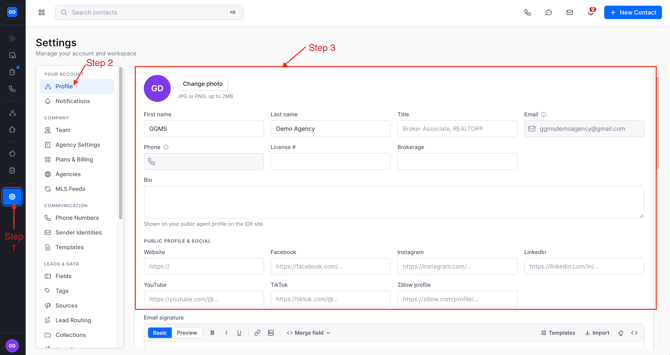
1. Complete Your Profile
What to do:
- Go to Settings → Profile
- If you do not have social media accounts or do not wish to display them on the site, please leave these blank.
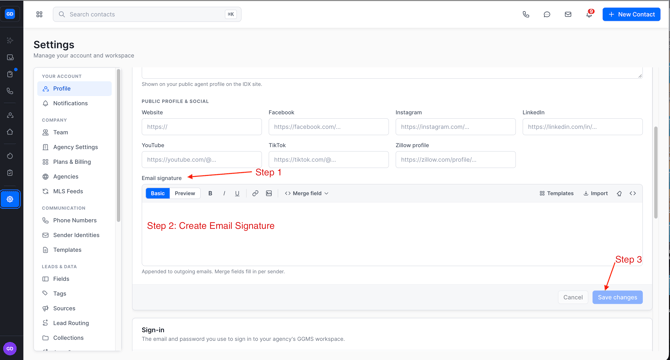
2. Update Your Email Signature
Your signature is automatically included in emails sent from the CRM, so it’s worth setting up right away.
What to do:
- Go to Settings → Profile
- Scroll to Email Signature
- Add or update your signature
- Click Save
3. Connect Your Email Inbox
This allows you to send and receive emails directly from the CRM.
What to do:
- Go to Settings → Profile
- Find Connected Email
- Sign in with Google or Microsoft
- Allow access and confirm connection
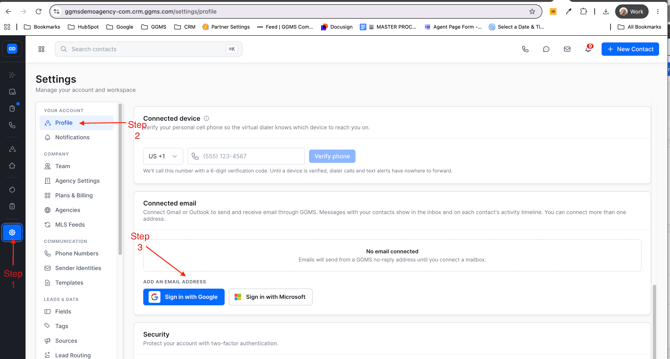
Once connected, you’ll be able to send emails from your CRM and see conversations in one place.
Full guide:
How to Connect Your Gmail or Outlook Inbox
How to resolve “Access Blocked” or “Authorization Error” with Google OAuth
4. Verify Your Phone Number
This step is required to make calls, send texts, and track conversations.
What to do:
- Go to Settings → Profile
- Scroll to Calling Settings
- Confirm your cell number
- Click Verify Phone and enter the code
- Save your settings
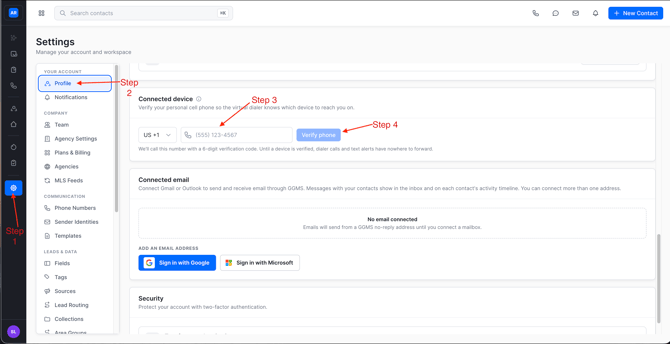
If this isn’t done, calls and texts won’t work correctly.
Full guide:
How to Verify & Connect Your Phone Number in the CRM
Quick Checklist
Before you start using the CRM, make sure:
- ✅ Fill in information properties
- ✅ Email signature is updated
- ✅ Email is connected
- ✅ Phone number is verified