.png?width=250&height=38&name=GGMS%20Knowledge%20Base%20Logo%20(1).png)
There are two simple ways to create a contact in your CRM.
Option 1: Create a Contact from the Top Toolbar
- From the toolbar at the top of your screen, click the person icon.

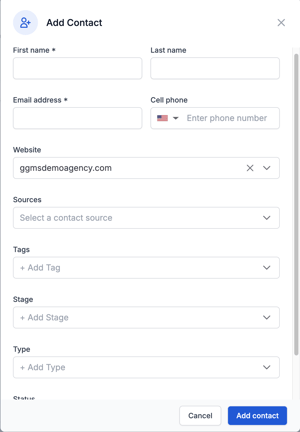
- A pop-up window will open where you can enter the contact’s details.
- While multiple fields are available, only one of the following is required:
-
First Name
-
Phone Number or Email Address
-
- Click Save to create the contact.
Option 2: Create a Contact from the Contacts Page
-
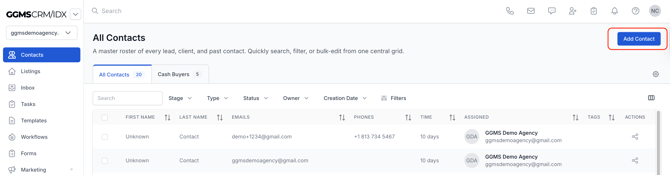
Navigate to the Contacts section of your CRM.
-
Click Add Contact located above the contacts table on the right side.
-
The same contact creation pop-up will appear.
-
Enter the contact’s details and click Save.
Need More Help?
If this didn’t answer your question, create a support ticket using the button at the top of the page, and our team will be happy to help.